XIM on macOS
On Apple Silicon, XIM ships as a native macOS application. It installs, configures, and controls the agent with Metal-accelerated vLLM in one window. Download the DMG, paste a join key, and the Mac enrolls into the router mesh as a worker. No container, no admin password.
- platform
- Apple Silicon (arm64), macOS 15+
- package
Xerotier.app(DMG)- accelerator
appleMetal(unified memory, TP 1)- runs as
- logged-in user (launchd, no admin)
Why a Native App
vllm-metal needs native Metal access (MLX plus Metal kernels and an arm64 Python 3.12 runtime). Apple's container binary runs Linux guests with no GPU or Metal passthrough, so there is intentionally no container image for this backend. The macOS app is the installer, environment-prep, and control surface in one place, and everything runs as the logged-in user.
The CUDA, ROCm, and CPU paths still use the container stacks documented on the XIM Overview page. This page covers the Apple Silicon path only.
Requirements
- Apple Silicon Mac (arm64) running macOS 15 (Sequoia) or newer.
- A join key from the dashboard: Infrastructure -> Agents -> Generate Join Key.
- Outbound HTTPS to the router URL (enrollment) and outbound TCP to the router's CurveZMQ port (data plane).
curl, uv, and Python 3.12 are provisioned automatically; uv and a pinned 3.12 are installed on first run if missing.
Install
- Download the latest
Xerotier-<version>.dmgfrom the Releases page and drag Xerotier.app into Applications. - Open Xerotier and go to Setup.
- Confirm the host preflight passes, paste your join key, and click Install & Start.
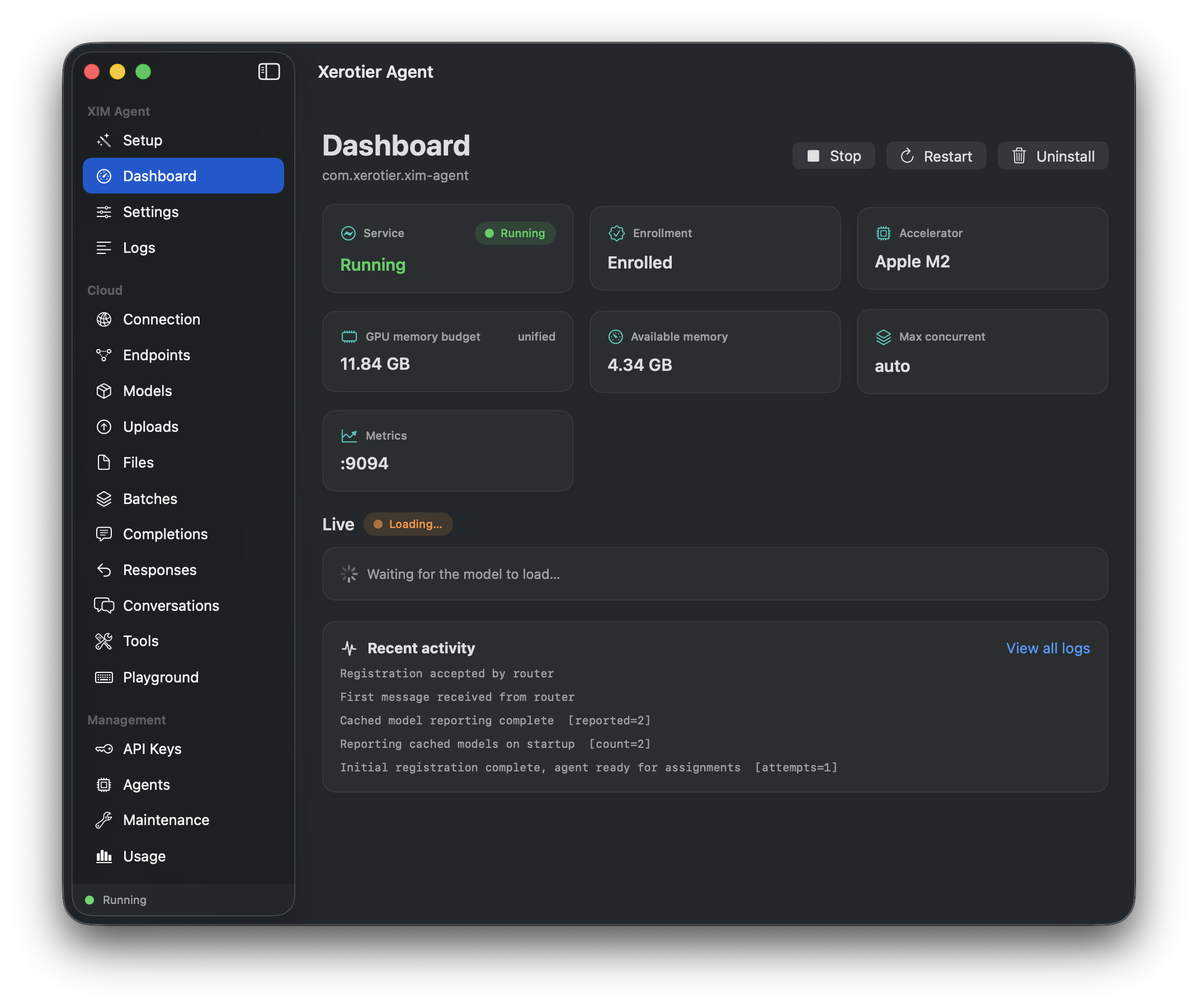
The app reports Apple Silicon as a single appleMetal accelerator sized from the Metal unified-memory budget; tensor parallelism stays 1. Once enrollment succeeds, the Mac appears under Infrastructure -> Agents with status online.
Control Surface
| Surface | What it does |
|---|---|
| Dashboard | Live status, the Apple Metal accelerator and unified-memory budget read from Metal, and Start / Stop / Restart / Uninstall. |
| Settings | The full agent configuration surface: max concurrent jobs, log level, metrics port, insecure transport, extra vLLM args and env. Apply & Restart re-renders the LaunchAgent and reloads the agent. |
| Logs | The agent's stdout and stderr, tailed live. |
| Menu bar | Status at a glance with quick start and stop. |
To inspect the service by hand:
launchctl print "gui/$(id -u)/com.xerotier.xim-agent" | head -20
tail -f ~/Library/Logs/xerotier/xim-agent.out.log
tail -f ~/Library/Logs/xerotier/xim-agent.err.log
What Install Does
Behind the Install & Start button the app, in order:
- Preflights the host (arm64, macOS,
curl,uv). - Provisions Python 3.12 via
uvand installs vllm-metal into~/.venv-vllm-metal. - Downloads the prebuilt
xerotier-xim-agent(assetxerotier-xim-agent-Darwin-arm64) from the newest stable release into~/.local/bin. A toggle allows prereleases. - Installs the HuggingFace compat shim into the venv.
- Renders the vLLM wrapper, entrypoint, and a per-user LaunchAgent.
- Enrolls with the join key and starts the agent under
launchd.
